Getting started
How do I find my way around Play, Night and Club?
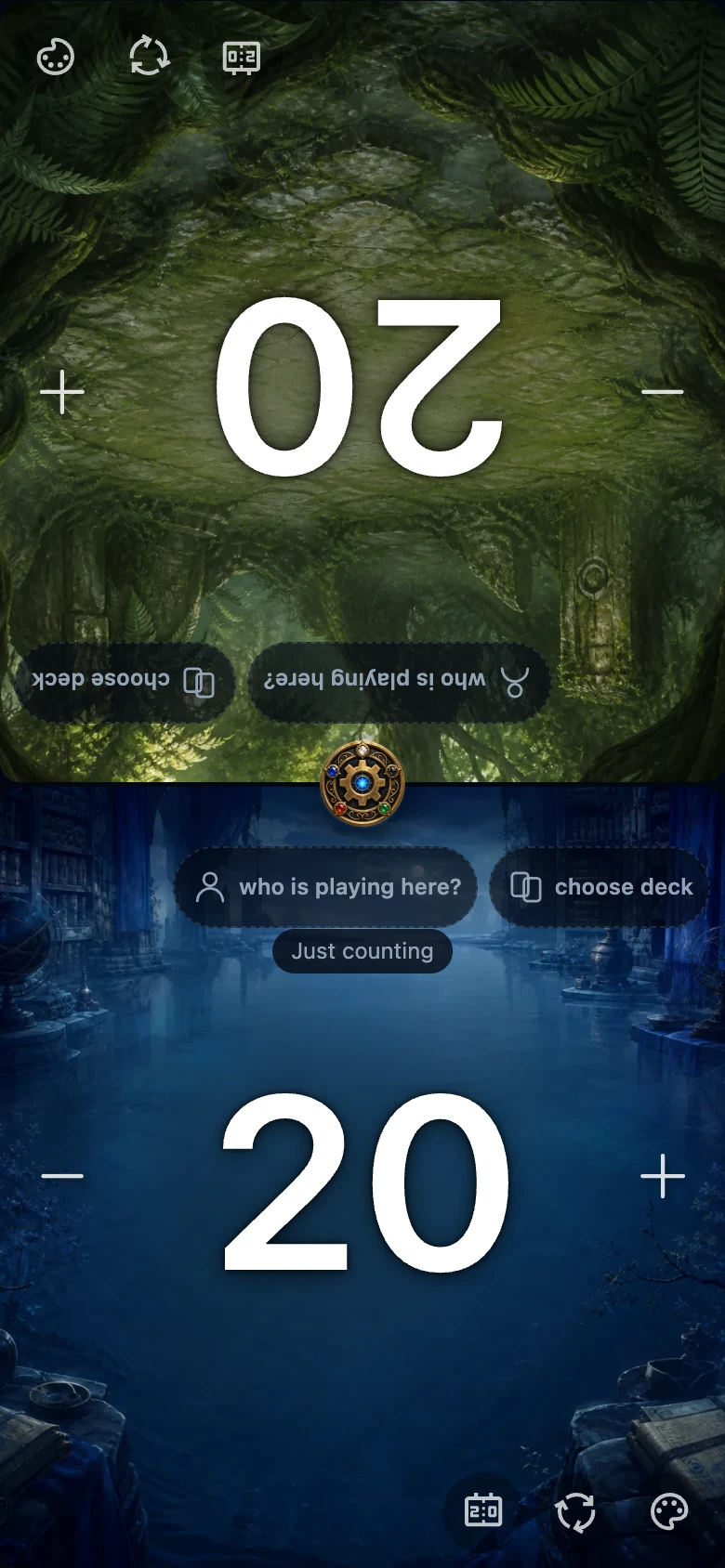
Open the round menu button on the counter to reach the three main areas: Play, Night and Club. Moving between them does not clear the life totals already on the table.
On this page
Before you start
You can open Play and Night without an account. Club contains personal history and organiser features, so it asks you to sign in.
If somebody has changed a life total, the app treats the table as a game in progress. You can look around without losing it. Changing the number of players, changing the starting life or choosing New game can clear that table after a warning.
Open the main areas
- Start at the counter and tap the round menu button. In a table layout it sits in the centre; with one player it sits at the top right.
- The app opens Play. Use the three tabs near the top to move between Play, Night and Club.
- Use Back to counter in the header when you want to close one of these main areas and return to the table.
What belongs where?
Play holds the settings for the table. This is where you choose Number of players and Starting life, start a New game, open the installation guide and check whether local changes still need attention.
Night is about the current game night. When you are signed in, it shows the roster, night standings and controls for managing the night. Random pairings is available without an account and does not add anything to your results. If you are signed out, Sign in for your game nights takes you to the sign-in screen and then returns you to Night.
Club is your account area. It brings together your profile, History, Statistics, Decks, Friends and Groups. If you open Club while signed out, the app takes you to Sign in first.
Return to a game in progress
After a life total has changed, pages in the main navigation show Game in progress with the current totals and a Back to counter action at the bottom. This is a shortcut to the same table; it does not create a second game or reset the current one.
Use Back to counter when you want to leave a page. Choose New game when you intend to clear the current table. If you tap a setting that would clear an active anonymous table, choose Cancel in the warning to keep it.