Counter controls
How do I choose the number of players and starting life?
Open Play and select a number under Number of players: one to six. Choose Starting life: 20, 30 or 40. Selecting a different value resets the life totals and extra counters; it does not record a result.
On this page
Before you start
You can use these settings without an account. Choose them before playing. If you already have a game in progress, changing a setting asks for confirmation before resetting the table. To keep a tracked result, finish the match before changing these settings.
The player panels rotate to different sides of the table so everyone can read their own total clearly, even when there are six players.
Set up and change players
- Open the counter and tap the round menu button in the centre. In one-player view, it is at the top right.
- Tap the Play tab if it is not already selected.
- Under Game settings, tap the number you want beneath Number of players: 1, 2, 3, 4, 5 or 6.
- Choose your Starting life: 20, 30 or 40.
- Tap Back to counter to return to the table.
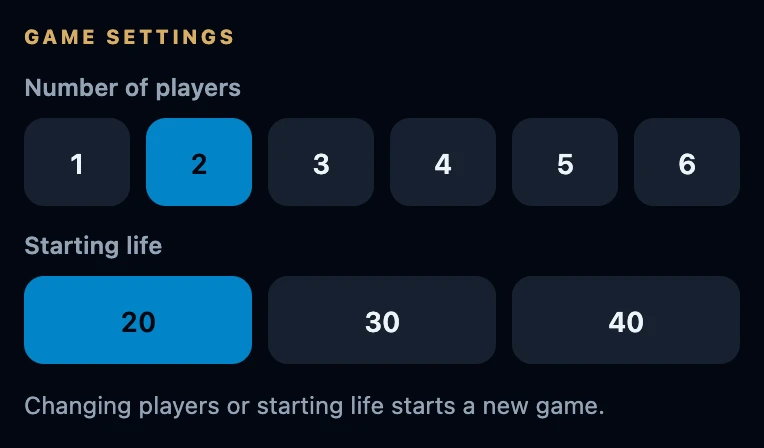
What happens when you change
Changing the player count resets life totals to the currently selected starting life. Changing starting life resets them to the new value. Both actions remove extra counters. Tapping the value that is already selected changes nothing.
Changing starting life keeps the players, their assigned names/decks and their backgrounds. Changing the player count keeps the seats that still fit: reducing it removes the last seats; increasing it adds new seats. Check who is sitting where before playing again.
A warning appears when the game is being tracked, a life total differs from starting life, or an extra counter has a nonzero value. A fresh table can be configured without a warning.
Confirm or cancel the change
- Cancel closes the warning and keeps your table unchanged. You stay on Play; choose Back to counter to return to the game.
- Clear the table appears when the game is not being tracked, such as when you are signed out. It discards the current totals; there is no recorded result to restore.
- Abort game appears for a tracked game. It stops tracking this game; anything already synced stays as it is. This does not finish the match or record a winner.
After you confirm, the chosen setting is applied and the table resets. You remain on Play until you choose Back to counter.