Counter controls
How do I reset one player, or start a new game?
In a player's toolbar, press and hold the reset icon to return their life to starting life and set their extra counters to zero. This has no confirmation dialog. For the whole table, choose Play → New game: this asks for confirmation when a game is in progress and removes all extra counters. Neither action records a winner.
On this page
Before you start
This works the same whether you are signed in or not. See choose players and starting life for the starting-life setting itself, and game, match and game night explained for what a “game” and a “match” mean here.
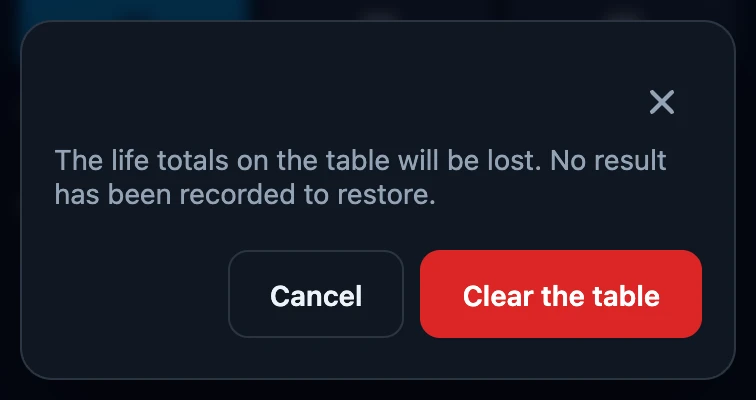
A confirmation only appears when there is something to lose: a game being tracked, a life total that has already moved, or an extra counter that is not at zero. A fresh table resets immediately, without asking.
Reset one player
- Find the reset icon in that player's toolbar, next to the add-counter and background buttons.
- Press and hold it — a ring fills in around the icon while you hold.
- Keep holding for about two-thirds of a second, until it fills and the reset happens; letting go earlier cancels and nothing changes.
A quick tap does not reset anything: it only shows the hint “hold to reset” for a moment. There is no confirmation dialog for this — the hold itself is what stops an accidental reset.
Only that player's life returns to the table's current starting life, and their extra counters return to zero. Their seat, identity, deck choice and background stay exactly as they were, and every other player is untouched.
Start a new game for everyone
- Open Play from the counter's centre menu.
- In the Game section, tap New game.
- If a confirmation appears, choose Abort game (a tracked game) or Clear the table (an untracked one) to continue, or Cancel to keep the table as it is.
- Once you confirm — or immediately, on a fresh table — you are taken straight back to the table.
New game returns every seat's life to the current starting life and removes all extra counters. Resetting one player keeps that player's counters, with their values set to 0. Both actions keep players, their identities, decks and backgrounds in place.
Changing the number of players or the starting life in Play settings starts a new game the same way, and asks the same confirmation when needed; see choose players and starting life for exactly what each of those settings keeps and resets. Unlike those settings, tapping New game returns you straight to the table — it does not leave you on Play.
What a reset does and does not record
Neither action ever records a winner or finishes a match; recording a result happens separately, from Game over in Play, once a game is being tracked.
Signed out, or before a game has started tracking, a reset or a new game only changes what is on the table — there is nothing to record yet. Signed in with a game being tracked, resetting a player also adds an entry to that game's history so a replayed total still matches the table; starting a new game instead stops tracking that game, without recording an ending for it. Anything already sent to the server before that stays as it is.
If it does not work
- Tapping the reset icon does nothing. That is expected — a tap only shows the hold hint. Press and keep holding until the ring finishes filling.
- New game asks me to confirm and I am not sure. Tap Cancel; the table stays exactly as it was and nothing is discarded.
- I confirmed by mistake and want the old totals back. There is no undo for a reset or a new game. If a game was being tracked, whatever had already synced before you confirmed remains saved; the totals on the table itself cannot be brought back.