Counter controls
How do I change backgrounds and use landscape mode?
Tap a seat's Change background button, in its bottom toolbar, to open a picker of one- to five-color and bonus designs; picking one applies instantly to that seat only. Landscape mode has no separate switch — turning your device rotates the whole board into a wider layout, with every panel re-rotated to face its own player.
On this page
Before you start
Backgrounds and layout work on any table, signed in or signed out — no account is needed (see start counting without an account). Every seat picks from the same built-in catalog; there is no way to upload your own image.
Landscape mode needs no setup either. It simply follows the actual orientation of your phone, tablet or browser window, at any player count from 1 to 6 (see choose players and starting life).
Change a seat's background
- On the seat you want to change, tap its Change background button — the last icon in its bottom toolbar, after add counter and reset.
- Pick a design from 1 colored through 5 colored, grouped by color, or from Bonus at the bottom for the non-color options.
- The picker closes and that seat's background updates immediately; the other seats are untouched.
Bonus holds six single-color Pony designs plus Glitter Pony, for a player who would rather not signal a color identity at all.
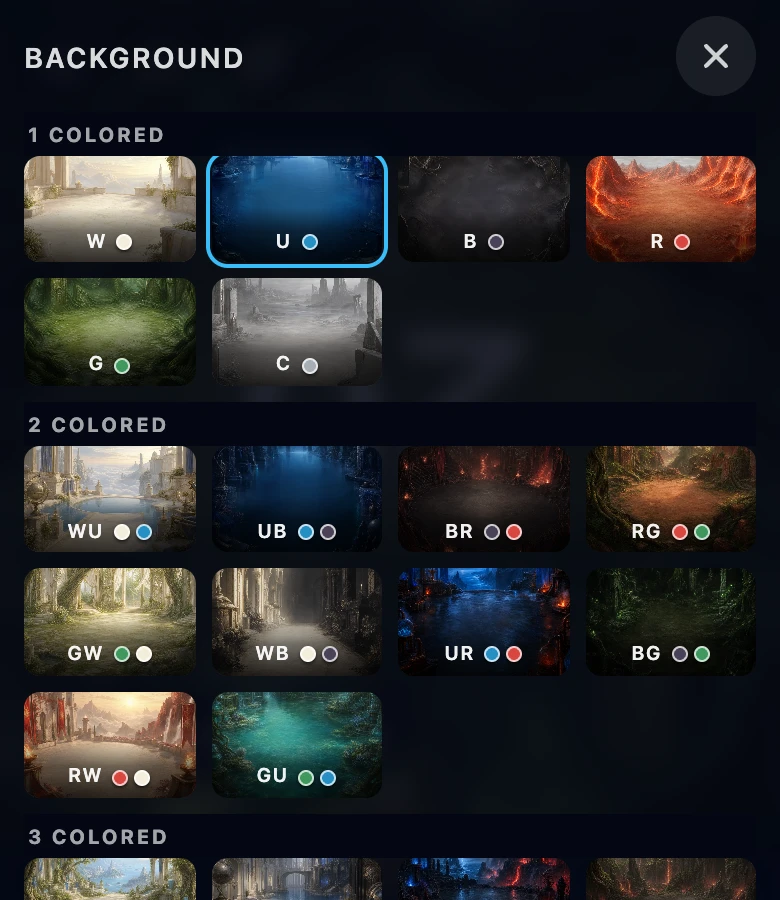
What sticks, and what does not
A chosen background stays on that seat through life changes, a player reset, New game and resizing the table (see reset one player or start a new game). It is remembered in this browser's own storage on this device, not on your account, so it will not follow you to a different phone or browser. Reducing the player count removes the last seats and their backgrounds; adding seats later gives them new backgrounds.
A seat you add to the table starts with a background chosen automatically, different from the ones already in use there.
Assigning a deck to a seat can change its background again by itself: the board switches to the design matching that deck's own color identity, overriding whatever was picked there before.
Landscape mode and rotated seats
Turning your phone or tablet sideways switches the whole board to its landscape layout on its own; there is no landscape toggle in the app, because the layout always matches the real orientation of the browser window.
Landscape spreads seats across more columns than portrait does, so more of them sit side by side instead of stacking — two players face each other left and right instead of top and bottom, for example. At every player count, each panel is rotated so its own top edge points away from the player sitting there, keeping that seat's −/+ areas the right way up for them.
Rotating the device only changes the seat grid and each panel's rotation. It never adds, removes or resizes players, and it never touches any seat's chosen background.
If it does not work
- The board did not rotate when I turned my device. Check that your device's own orientation lock is off; the layout can only turn when the operating system lets the browser window turn with it.
- My chosen background changed back on its own. Check whether a deck was picked or changed for that seat afterwards — assigning a deck recolors its background to match automatically.
- I cannot find the Change background button. Every seat has one, at the end of its own bottom toolbar next to add counter and reset; there is no separate settings page for it.
- The background looks different on another device. Expected — it is saved only in this browser's storage on this device, never to your account.