Decks
How do I take over a provisional deck or merge duplicate decks?
A deck recorded for you that still sits on a friend's list appears under Take over in Club → Decks; tap Take over to move it to your account. To combine two decks of the same player, tap Merge, choose the deck that remains and confirm. Neither can be undone.
On this page
When you can take over a deck
A deck that a friend creates for your seat normally lands on your own account straight away, once their friend entry for you is linked. Take over is the way back for decks that still sit on someone else's list. The section only appears when there is such a deck, and usually there is none.
- Link first. The contact the host keeps this deck for must be linked to your account. Your name on a seat alone is not enough.
- Only your own games. Every recorded seat with the deck must be yours. Otherwise you see This deck also carries games of someone else. Move only your own seats instead.
- Not archived. An archived deck is not offered.
- Only once. After taking over, the deck is yours; nobody can take it back.
Seeing First link the host’s contact to your account before taking over this deck.? Ask the host to link their contact to your account, then try again.
Take over a deck
- Open Club → Decks. Under Take over it says These decks were recorded for you at the table, but still sit on someone else’s record.
- Tap Take over next to the deck.
- You see This deck is on your account now. Finish it, or merge it into a deck you already had. The deck is now under Provisional.
You can also start from a recorded match: open it in History and tap Take over this deck under your own seat. Taking over changes no recorded game; the seats keep pointing to the same deck version, so your history and statistics stay intact.
Merge two decks
- Start from the deck that should disappear: tap Merge on a provisional deck in My decks, or Merge on any deck's page.
- Merge deck opens, for example with Move every version of ‘Sky Patrol quick’ to an existing deck. Choose the deck that remains under Merge into.
- Read the warning and tap Merge.
- The app asks Merge decks? with This cannot be undone. Your history remains intact. Tap Merge to continue, or Cancel to change nothing.
- You see Decks merged. Started from a deck page? Then the deck that remains opens.
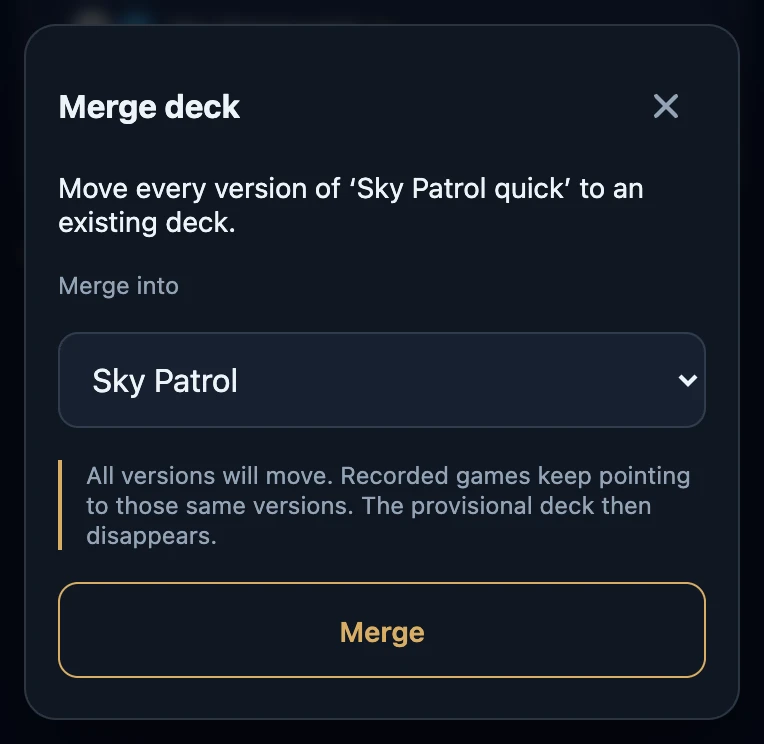
Which decks can be merged
- Decks of the same player. Your own decks with each other, or the decks you keep for one friend who is Only with you with each other. Merge into only lists those.
- No archived deck as target. An archived deck is not offered under Merge into.
- Nothing to choose? You see There is no other deck belonging to this player to merge into yet.
What merging does
- All versions move. They are added after the versions of the deck that remains, with new numbers, and their label gets the name of the removed deck.
- Recorded games keep their version. Matches played with the removed deck now show the deck that remains, in history and statistics.
- The deck you started from disappears, whether it was provisional or finished. Name, format and colours of the remaining deck do not change.
- There is no undo. A merged deck cannot be split again.
If it does not work
- There is no Take over section. There is no deck to take over, or there is no connection.
- Taking over did not work. Check your connection and try again.
- The decks could not be merged. Check your connection and try again; nothing has changed.
- The deck I want to keep is not under Merge into. It belongs to another player, it is archived or it is the deck you started from.