Decks
How do I create or finish a full deck profile?
In Club → Decks, tap Add deck and then Fill in every field now. To complete a provisional deck, tap Finish on it. Only the colour identity is required; tap Save when you are done.
On this page
Before you start
You need to be signed in and online: the full form is saved directly. Without a connection the form shows No connection. Try again once you are back online. and nothing is saved. Only a quick deck can be made offline.
Create a full deck
- Open Club → Decks and tap Add deck.
- Tap Fill in every field now. New deck opens; a name, colours or archetype you already typed come along.
- Fill in the fields you want; they are explained below.
- Tap Save. The deck appears under Decks in My decks, not as provisional.
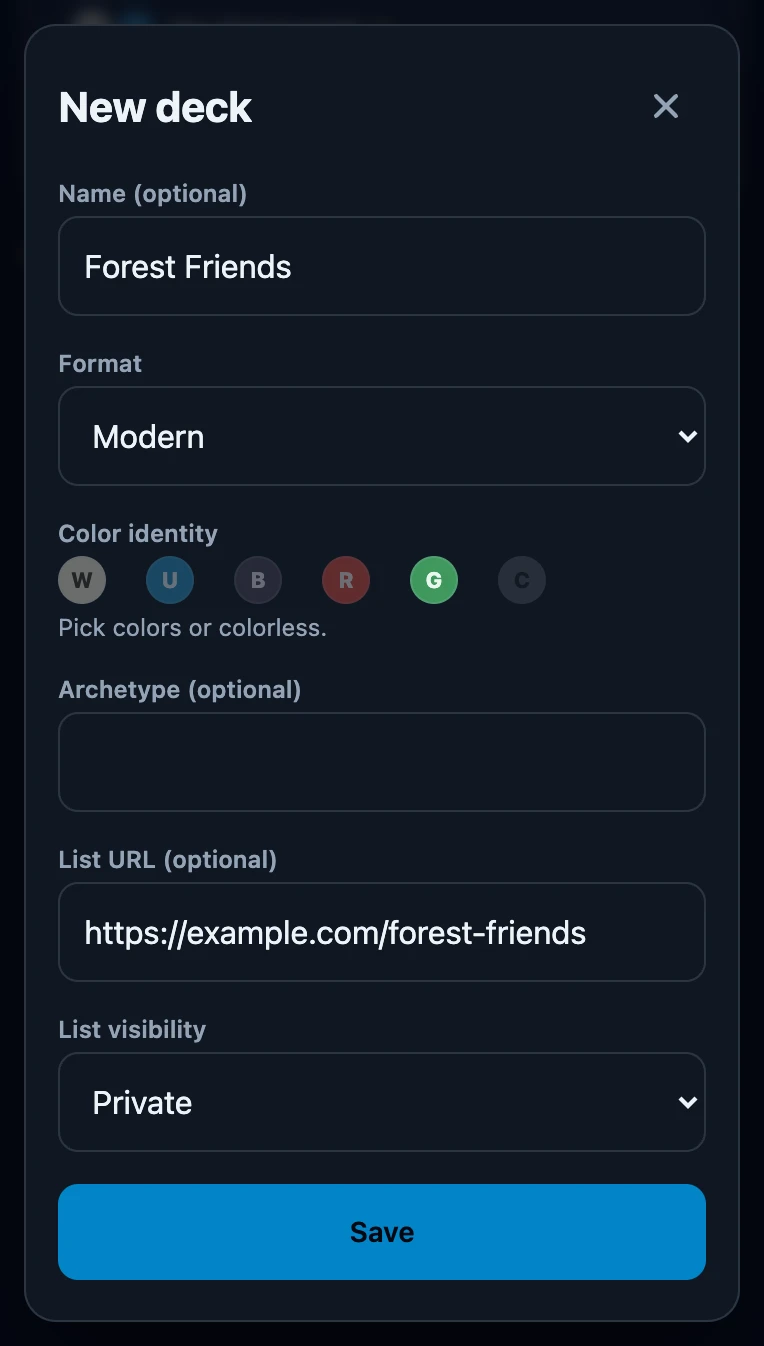
The fields
- Name (optional). Up to 80 characters. A deck without a name is shown as Unnamed deck.
- Format. None or one of the listed formats, such as Commander, Modern or Pauper.
- Color identity. The only required field: tap one or more colours, or C for colourless. Save stays greyed out until you choose.
- Commander (optional). Only appears for the formats Commander and Brawl. Type a few letters to get suggestions marked Card data © Scryfall, or keep the name you typed yourself. Switching to a format without a commander empties the field. For an existing deck with a commander already filled in, the field also remains visible under another format so you can edit that name.
- Archetype (optional). Suggests archetypes from a fixed list; your own wording of up to 60 characters is allowed too.
- List URL (optional). A link to your list on another website, starting with http:// or https://. Wizards' Club does not read or import that list.
- List visibility. Private, the default, or Public. This decides whether friends' apps receive the list link, not who can open the page on the other website.
Finish a provisional deck
- Open Club → Decks. Provisional decks are at the top under Provisional.
- Tap Finish. The deck page opens; tap Finish there to open Edit deck.
- Check what is already filled in, complete the rest and tap Save.
- Provisional deck disappears and the button on the deck page now reads Edit deck. Games already recorded with the deck stay linked to it.
Saving Edit deck always marks a deck as finished, even if you changed nothing. A provisional deck you made for a friend who is Only with you is finished the same way: open that friend in Friends and tap the deck on their card. A deck on a linked friend's account can only be finished by that friend.
Change a deck later
Tap the deck in My decks and then Edit deck. Changing List URL (optional) there corrects the link of the current version, as the form says: Updates the current version. Rebuilt the deck? Add a version instead.
If it does not work
- Save stays greyed out. Choose a colour or C first.
- The list URL field must be a valid URL. Use a complete address that starts with https:// or http://.
- There is no commander field. Set Format to Commander or Brawl.
- No suggestions appear for the commander. The card search needs a connection. Type the full name yourself; that is saved too.
- Open list does not appear right after saving a link. Open the deck page again.