Counter controls
How do elimination prompts work, and how do I undim a player?
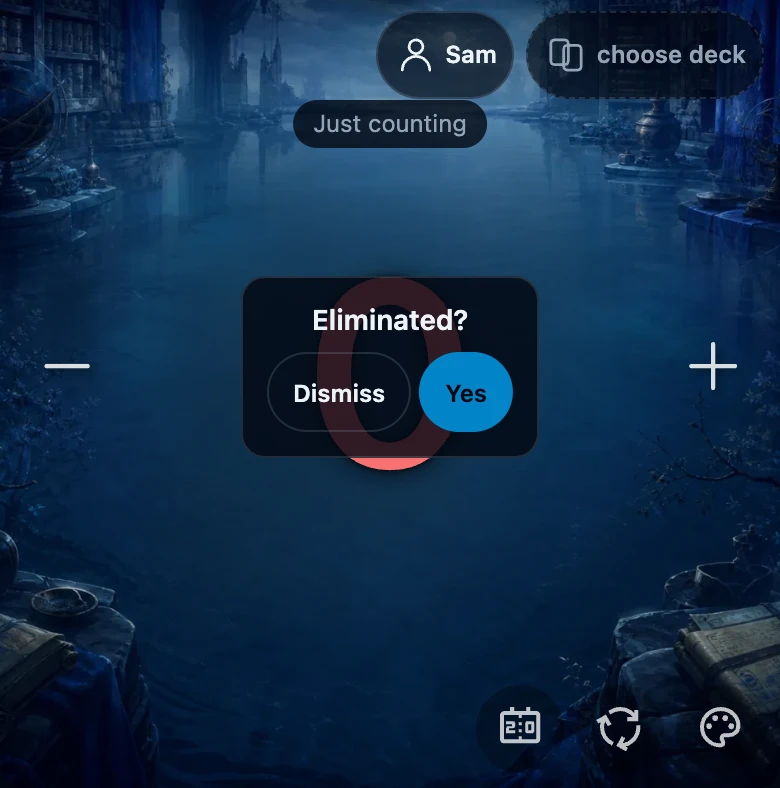
Once a signed-in, tracked game brings a seat's own life total to 0 or lower, that panel shows an Eliminated? prompt with Yes and Dismiss. Tapping Yes dims the panel and adds an Undim button; nothing else about that seat changes, and Undim reverses it whenever you want.
On this page
Before you start
Elimination prompts appear only in a tracked game. Starting tracking needs a signed-in account and a first life change. A signed-out table with no tracked game left over shows Just counting and no elimination prompts. Do not sign out during a tracked game; it remains on the table.
The prompt reacts only to a seat's own life total. Poison, Energy, Experience and Commander damage are separate counters with their own numbers (see add and remove extra counters); none of them can trigger this prompt or dim a panel, however high they climb.
When the prompt appears
- Play as usual; once you are signed in, the first life change on a fresh table starts tracking that game.
- Lower a seat's own life to 0 or below with its − area.
- That panel shows Eliminated? with two buttons: Yes and Dismiss.
This can happen on a table with only one seat too — a solo tracked game still asks.
Confirm or dismiss
Tapping Yes marks that seat eliminated: the panel turns visibly grayer and darker so you can see who is out at a glance, and an Undim button appears on it. The life total and that seat's counters are untouched, and its −/+ areas keep working exactly as before.
Tapping Dismiss closes the prompt without recording anything. It will not return for that seat until life climbs back above 0 and then dips to 0 or below again, so dismissing a single stray tap does not bring it straight back.
Undim a player
A dimmed panel keeps its Undim button until you tap it. Tapping Undim clears the dimmed look immediately and, if the Game over sheet is open because of this elimination, closes that sheet too.
Undoing an elimination does not change that seat's life total by itself. To also put it back at a specific number, adjust its life with the −/+ areas or use its long-press reset (see reset one player or start a new game).
Why does "Game over" keep reopening?
With two or more seats tracked, confirming an elimination that leaves exactly one seat un-eliminated opens the Game over sheet automatically, with that seat prefilled as the winner. Closing the sheet does not turn this off: the next life change on any seat re-checks the same condition and reopens it while only one seat is still standing.
To stop it reappearing, either finish the match from that sheet or tap Undim on an eliminated seat so more than one is back in play.
If it does not work
- No Eliminated? prompt at 0 life. Check whether the game is being tracked. Sign in before playing; a fresh signed-out table does not start tracking.
- A counter reached a high number but nothing happened. Expected — Poison, Energy and Commander damage never trigger this prompt; only a seat's own life total does.
- The Game over sheet keeps popping back up. Any life change while just one seat remains un-eliminated reopens it; finish the match or tap Undim on an eliminated seat instead of closing the sheet.
- I confirmed by accident. Tap Undim on that panel — it clears the dim immediately and closes Game over if that is open too.
- A reset player's panel is still dimmed after a long press on its reset icon. A long-press reset only resets life and counters, not elimination; tap Undim separately to clear the dim.