Offline and recovery
How do I keep my game safe when closing or updating the app?
When browser storage works normally, the table and changes waiting to be sent survive closing, reopening and updates. Clearing website data removes that local copy; private browsing can remove it when the private session ends. Recording without a safety net means a life or counter change could not be saved in the local buffer. Keep the app open, restore a connection and check that the result reaches History before closing.
On this page
What is kept on this device
- The table: seats, names, life totals, extra counters, backgrounds and the game being recorded. The app saves it a moment after every change, and straight away when you switch to another app or close it.
- Life changes while a game is recorded. Each tap is written to storage before it is sent, so a tap just before closing the app is picked up again the next time you open it.
- Changes waiting to be sent, such as a finished match or a new friend. They stay until the server has accepted them.
- The copy of your History, Statistics, Friends and Decks that lets you read them offline.
Results the server has accepted also live in your account and come back on any device where you sign in. The table and unsent changes exist on this device only.
Closing and reopening
With working storage, you can close the app, lock the phone or switch apps and resume the saved table later. Waiting changes are sent when you are signed in to the same account and have a connection. Signing out keeps the table and queue, but removes the saved account lists. Finish a recorded match before signing out; recording while signed out is limited (see sign in and sign out).
New game, changing the starting life, Abort game and Clear the table can reset the table. Changing the number of players resets life and extra counters, keeps the remaining seats with their names and backgrounds, and removes the last seats if you reduce the number (see reset one player or start a new game).
Updates
The app updates itself in the background and asks nothing. Once a new version has been installed, the page may reload by itself. The table and waiting changes are kept in storage, not in the app’s own files, so they are still there after that reload. This only protects data that was actually stored; a memory-only change after a storage failure can be lost on reload.
Recording without a safety net
While signed in, Recording without a safety net appears below the menu button when saving a life or counter change fails. This warning concerns that local buffer; it does not test every part of browser storage. No warning is not a guarantee that all data is safely stored.
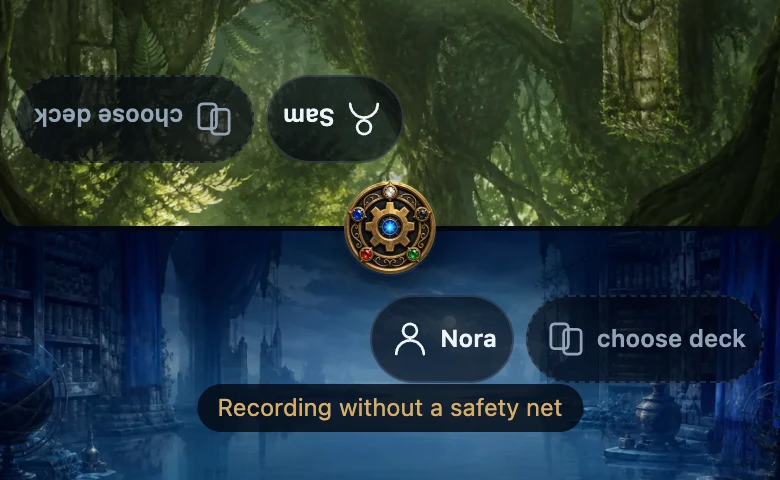
- What still works: the app keeps the change in memory and tries to record and send it. This still depends on the remaining storage and the connection.
- What is at risk: changes held only in memory can disappear on closing or reloading. The table may be missing or outdated after reopening.
- What to do: keep the app open with a connection. Check pending sync and History; if sending still fails, note the result separately before changing storage settings. Free up space without deleting this app’s data.
While signed out, this warning is hidden. A fresh signed-out table records no history, and table storage can also fail silently. Signing out during an existing recorded match is a different case: finish it before signing out.
What deletes it for good
- Clearing website data for Wizards’ Club, or all browsing data, in your browser or device settings.
- Closing a private or incognito window. Everything from that window is gone.
- Removing the app. Reinstalling does not bring anything back, and depending on the device, removing it can delete this storage too.
A table or unsent changes cannot be recovered after that. Results the server had already accepted are not affected: sign in again with a connection and your History is fetched again.
If something is missing
- The table was empty when you opened the app. The storage was deleted, the app ran in a private window, or the browser refused storage. A previous table cannot be restored.
- A result you recorded before closing the app is missing. On the phone that recorded it, open Play: Still to sync: means it is still waiting (see check pending sync and recover rejected changes).
- You are about to clear website data to fix a problem. Look at Play first. If it shows Still to sync: or Needs attention, clearing would delete those changes.