Offline and recovery
How do I check pending sync and recover rejected changes?
Open Play and look under Service. Still to sync: means changes are waiting, and the app sends them by itself. Needs attention means the server refused a change: tap it to open Syncing, read the reason, and choose Try again — or Discard, but only when that change should never arrive.
On this page
Where to look
Tap the menu button on the counter to open Play. Under Service you see one of three states:
- Saved locally. Everything is on this device. Nothing is waiting and nothing was refused.
- Still to sync: 3. Three changes are on their way to the server.
- Needs attention, with for example 1 change was not accepted. The server refused something. While this row is there, the waiting number is not shown next to it.
Both numbers count the signed-in account on this device only.
Still to sync
Everything you record is saved on the phone first. The app sends it by itself a few seconds after a change, as soon as the connection comes back, when you open the app, and about every minute while something is waiting. After a failed attempt it waits a little longer each time, up to a minute. Keep the app open with a connection and the line returns to Saved locally. Everything is on this device.
Waiting changes stay on the phone when you close the app or sign out. They go out once the account that made them is signed in again with a connection.
When the server refuses a change
Once per session the app says Some data could not be synced. The refused change stays on this phone and moves to Needs attention. It is not sent again by itself, and your other changes keep going out.
- Open Play and tap Needs attention. The Syncing screen opens.
- Each line says what it was, such as Match or Confirmation of a result, with a name or date when there is one.
- Below that is the reason, such as There is no confirmation left to answer., and Queued on with the date and time.
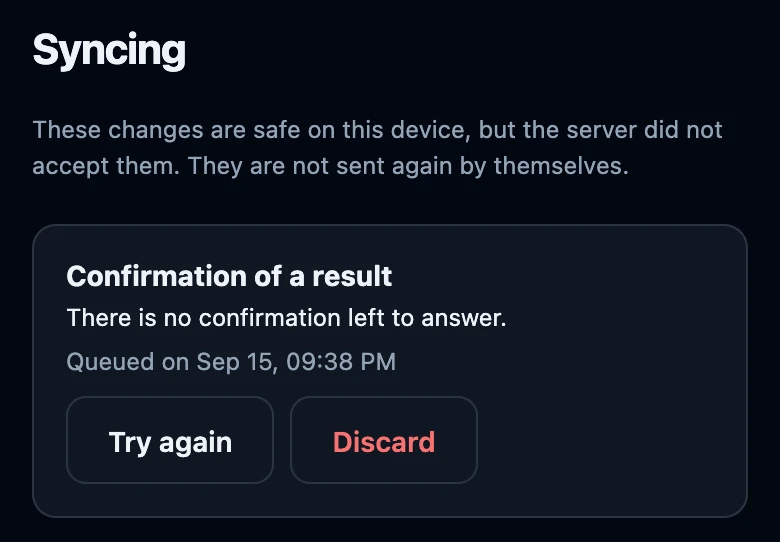
Try again
Try again puts the change back at the end of the queue and says Back in the queue. The app will try to send it again. The line leaves the screen and the app sends it in the next round. Sending the same change twice does no harm: the server recognises what it already has.
It helps when the cause has since been solved:
- The game night it belongs to is not on the server. or The match it belongs to is not on the server. Something it depends on had not arrived yet. Let the other waiting changes go out first, then try again.
- This is not yours to change. Check whether the change belongs to this account. Try again keeps its original account; switching accounts cannot transfer a change. If you switched accounts during a recorded match, return to the original account for its queued work. New changes made under the other account stay with that other account.
If the server refuses it again, it returns under Needs attention, and an open Syncing screen shows the line again as soon as that attempt has finished.
Discard
- Tap Discard on the line.
- The app asks Discard this change for good? It leaves this device and will never reach the server.
- Tap Discard to remove it, or Cancel to keep it.
Discarding cannot be undone. Only do it when you know what the change was and it can never be accepted, for example The result was already final; after seven days it cannot change. Other players and your other devices will never receive it. When nothing is left, Syncing says Everything has been sent. Nothing needs your attention. This empty-screen message only means no rejected changes are listed; changes may still be waiting to send. Check Play as well.
What not to do
- Do not clear website data or reinstall the app to hide a message. Clearing data removes waiting changes; uninstalling may remove them too.
- Do not sign out to push changes through. Signing out sends nothing; the changes simply wait for that account.
- Do not discard everything at once. Read each reason first; some lines only need Try again.
If it does not work
- Still to sync does not go down. There is no working connection yet, or the phone is signed out. Sign in with the same account and stay online for a moment.
- The reason ends in a code in brackets, such as The server gave no usable reason (…). The app does not recognise that reason. Try again once; if the line comes back, the change cannot be sent as it is.
- A line disappeared after Try again, but the change is still missing elsewhere. It is back in the queue. Without a connection it waits under Still to sync: on Play; if the server refuses it again, the line reappears on Syncing by itself.