Recording and results
How do I write and save a private match note?
Open the match in Club → History, type in My private note and tap Save note. Only you can read the note: not the other players and not the person who recorded the match. Saving needs a connection.
On this page
Write and save a note
- Open Club → History and tap a match you played in or recorded.
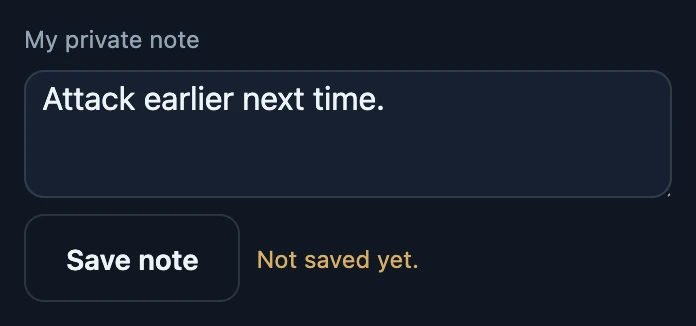
- Type in My private note. Not saved yet. appears next to the button.
- Tap Save note. While it saves, Saving… is shown, then Note saved.
- Close the details. The next time you open the match, your note is there.
Who can read it
- Only you. Every player has their own note on the same match, and nobody sees yours, including the person who recorded it.
- It is not part of the result. Saving a note does not ask anyone to confirm again.
- It keeps working after seven days. You can still write or change a note once the result is final.
- To delete a note, clear the text and tap Save note.
- A note can be up to 10,000 characters.
Closing with unsaved text
If you close the details while text is not saved, the app asks Your note has not been saved. Close and discard that text? Tapping Cancel keeps the details open with your text; Close without saving throws the text away.
Only the text that was sent counts as saved. If you keep typing after tapping Save note, Not saved yet. appears again for the newer text.
Without a connection
- Saving fails. The message The note could not be saved. appears and the text stays marked Not saved yet. Tap Save note again once you are online.
- An existing note may not load, so the field can look empty. Saving replaces the whole note, so open the match again when you are back online before you type.