Accounts and profile
How do I change my name, language, username and defaults?
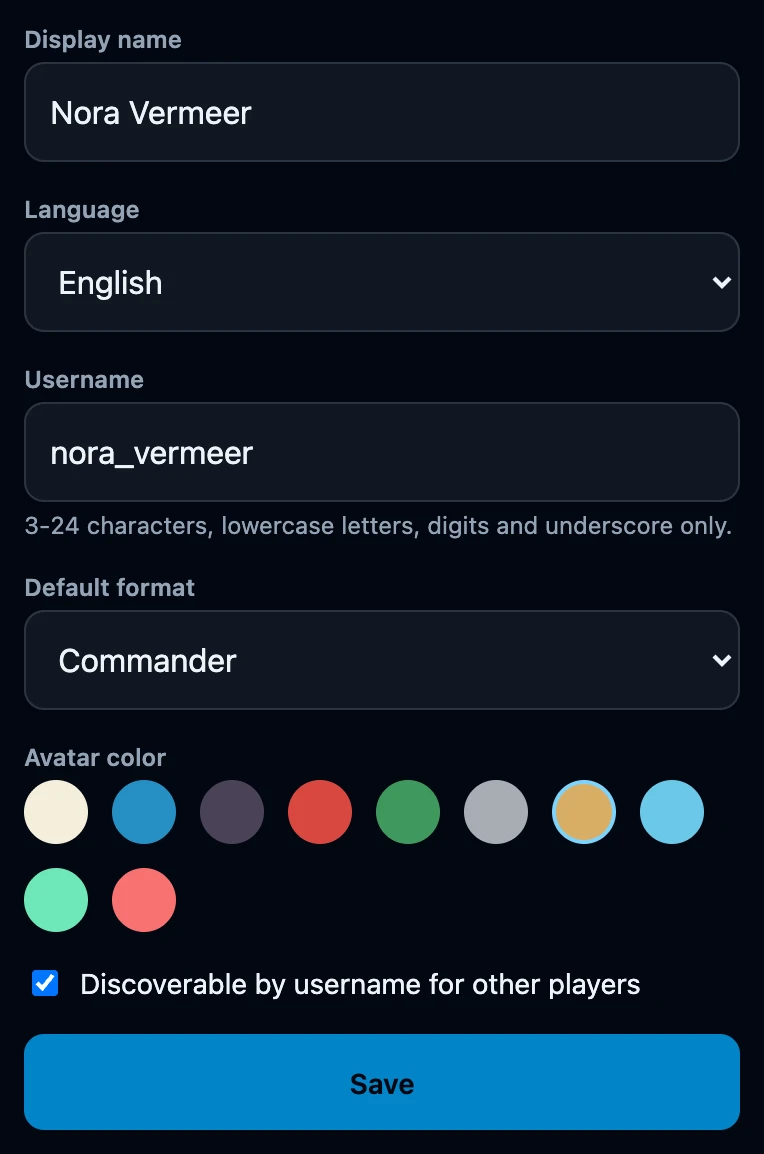
Open Club, tap the row with your name and you are on Profile. Display name, Language, Username, Default format, Avatar color and the discoverability switch are one form, stored together with Save, which answers Saved. Your email address and password are not on this page.
On this page
Open your profile
- Open the counter and tap the round menu button in the centre of the table.
- Tap Club. The top row shows your name and, under it, your username or No username yet.
- Tap that row. The page is titled Profile and greets you with Signed in as and your name.
- Change what you want and tap Save. The form answers Saved. above the fields.
What each field does
- Display name is the name the app shows for you: at the top of Club, on a seat you take as Me, and for the players you are linked to. At most 60 characters, and it may contain spaces and capitals.
- Language is Dutch or English. Picking one changes the screen immediately, but the choice only sticks after Save — and the saved language is what you get when you sign in on another device.
- Username is optional: 3 to 24 characters, using lowercase letters, digits and underscores only. Other players search for it when your discoverability is on. Without a username you can still link using your personal code.
- Default format is stored with your account, and that is all it does today. The counter, your decks and recorded games do not read it, so it fills nothing in for you yet.
- Avatar color colours the round avatar next to your name on Club. Tap the chosen swatch a second time to clear it and go back to the plain avatar.
- Discoverable by username for other players decides whether a search can find you at all. It is on for a new account, but with no username there is still nothing to find.
Saving
Nothing on this form reaches your account until you tap Save, with one exception: the screen language switches the moment you pick it. Leave the page without saving and the app goes back to the language stored on your account the next time it starts.
Saving needs a connection. If it fails, the values stay in the form so you can try again once you are back online; the counter keeps working meanwhile.
What it does not change
- The table is untouched. Players, life totals, starting life, backgrounds and extra counters are settings of the device, not of your account.
- A seat you have already taken keeps its old name. The seat stores the name it was given; pick Me again in the player list to bring the new one in.
- Your email address and password are not here. The address cannot be changed in the app; a password goes through Forgot your password? on the sign-in screen (see reset a forgotten password).
- Your personal link code is not affected. It sits lower on the same page and only changes when you rotate it yourself.
If it does not work
- The handle field format is invalid. One message covers every rejected username: capitals, spaces, accents, punctuation, fewer than 3 characters or more than 24. Lowercase letters, digits and underscore are all that is allowed.
- The handle has already been taken. Somebody else uses this username. Pick another one; a username is optional, so you can also leave it empty.
- No connection. Try again once you are back online. Saving the profile needs the server, unlike the counter.
- The app is in the wrong language on another device. The language travels with your account. Change it here, tap Save, and sign in again there.
- My new name is not in an old result. Recorded games keep what was recorded; changing your name now does not rewrite what is already in History.