Installation and troubleshooting
How do I scan a QR code, or enter the code by hand?
Scan inside the app, not with your phone’s camera app: tap Scan a code at the top of Play, Night or Club, or use Join a night or a friend’s Scan their code. Tap Open camera and point it at the QR code. If the camera does not start, type the code under Code and tap Use code. You need to be signed in and online for a code to be checked.
On this page
Which code do you have?
- A night code has six characters. The host finds it under Night → Manage night → Second device. It lets another signed-in phone join that night (see join a game night from a second device).
- A personal link code has ten characters and is on a player’s Profile under Link code. A host uses it to link a friend to that player’s account (see link a friend to their account).
- A claim code has ten characters and appears when a host taps No account yet? Show claim QR. With it, a player claims the friend the host made for them (see claim a contact).
Every code works for whoever has it. Show it at the table instead of posting a picture of it.
Where to scan
- Scan a code, the scan button at the top of Play, Night and Club while signed in, accepts all three. A night code joins the night, a link code adds a linked friend or returns the existing link, and a claim code opens Claim contact.
- Night → Join a night opens the same Scan a code screen.
- Club → Friends → a friend → Scan their code opens Scan link code and links that friend. Use this for someone already in your list, so their earlier games stay with them.
A phone’s camera app opens the QR link in a browser, where you may need to sign in again. Each link has its own page there: a night link lets you join, a claim link opens Claim contact and a personal link QR adds the player as a friend. Scanning inside the app is still quicker.
Scan with the camera
- Tap Open camera. The first time, the browser asks whether the app may use the camera: allow it.
- Point the back camera at the QR code. The screen says Point the camera at the QR code. Hold your phone steady.
- The code is read automatically, the camera stops and the screen closes. Stop camera stops it without scanning.
The camera image is read on your own phone and is not sent anywhere. The camera also stops when you close the screen or switch to another app. Reading a QR code works offline, but using the code needs a connection.
If the camera does not start
- Camera access denied. Allow camera access for this app in your browser or device settings and try again. Permission was refused. On iPhone, Apple’s route is Settings → Apps → Safari → Camera, then Ask or Allow. In Chrome on Android: ⋮ → Settings → Site settings → Camera, tap the app’s address under Blocked and choose Allow. Then tap Open camera again.
- No camera found. Enter the code below. The device has no camera the browser can use. Type the code instead.
- The camera is unavailable here. Open the app over HTTPS in a browser with camera access, or enter the code. This browser does not offer the camera on this page, for example on an address without https. Open the app at its usual address, or type the code.
- Scanning failed. Enter the code below. Starting or reading the camera went wrong. Try Open camera once more, or type the code.
- The camera runs but nothing happens. Hold the phone still, make sure the whole QR code is in view and move a little closer or further away.
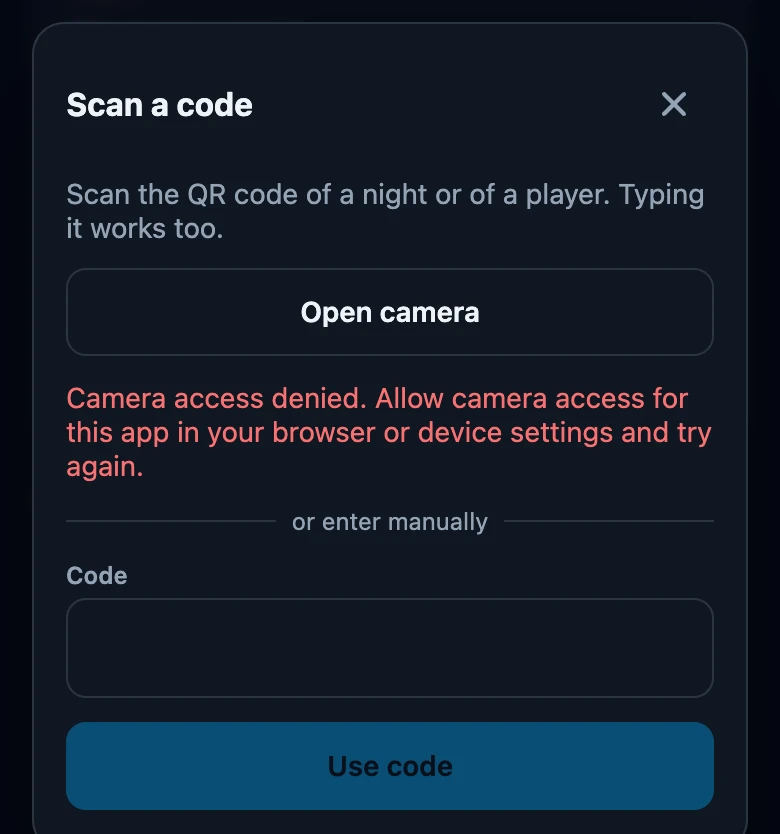
Enter the code by hand
- Under or enter manually, type the code in Code, or in Link code when you link a friend. Capital letters, small letters and spaces do not matter.
- Tap Use code, or Link contact for a friend. The button stays grey while the field is empty.
- The screen closes. If it worked, you see the result, such as You joined followed by the name of the night.
A typed code does not say what kind it is. Under Scan a code, six characters count as a night code; ten characters are tried as a claim code first and otherwise as a link code.
When a code is not accepted
- We don't know this code (anymore). The code was mistyped, the night was closed, the player rotated their link code, or the claim code was used or replaced. Ask for the current code and open Scan a code again, because the screen closed after the attempt.
- This code does not belong to an open game night. You opened a night QR code through the browser, and the night is closed or the code is wrong. Ask the host for the current code.
- This claim code is unknown or has been revoked. The claim code was used, revoked or replaced. The host opens the card again for a new QR code.
- This link code is unknown or has been revoked. Shown when linking from a friend’s card: a typing mistake, or the player rotated their code.
- No connection. Try again once you are back online. A code is checked by the server, so try again with reception.
- There is no scan button. Sign in first; Scan a code and Join a night only appear for signed-in players.